FFmpeg is the most capable video conversion tool around, but installing it is not trivial: you have to download the right binary, add it to the PATH and learn the command-line syntax. For someone who only converts a video now and then, that barrier is enough to give up before starting. This guide shows how to use the power of FFmpeg directly in your browser, with nothing to install and nothing uploaded to a server.
Advertisement
What FFmpeg is and what it does
FFmpeg is an open-source program for processing audio and video. What makes it remarkable is its reach: it supports a very wide range of video and audio formats, including nearly all the ones in common use, and operate on them — converting between formats, changing resolution, extracting audio, trimming clips, adding subtitles, altering bitrate.
Professional video editors, streaming services and broadcast systems use it internally. VLC relies on it to play most of the formats it opens. YouTube, Twitch and most video platforms use it to process what users upload.
In the terminal, a typical FFmpeg command looks like this:
ffmpeg -i input_video.mp4 -c:v libx264 -crf 18 -c:a flac output.mkv
Converts an MP4 to MKV with high-quality H.264 video and lossless FLAC audio.
The trouble with installing FFmpeg
Installing FFmpeg is an extra step many people either would rather not take or cannot:
- Windows: you have to download the binary from a third-party site — the project offers no official installers — unzip it and add the path to your system PATH, a process that puts off non-technical users.
- macOS: the easiest route is Homebrew (
brew install ffmpeg), but first you have to install Homebrew. - Linux: the easiest of the three (
apt install ffmpeg), but it still means using the terminal. - Shared or work computers: you may not have administrator rights to install software at all.
For someone who just needs to convert one video, installing FFmpeg is overkill. The answer is to use FFmpeg without installing it.
FFmpeg.wasm: FFmpeg in the browser
WebAssembly (Wasm) is a binary format modern browsers can run natively, at speeds close to native code. Developers have compiled FFmpeg to WebAssembly — the result is called FFmpeg.wasm.
That means FFmpeg can run inside Chrome, Firefox, Edge or Safari, directly on your device, with nothing to install. The advantages are considerable:
Nothing to install
There is nothing to install. The FFmpeg.wasm binary downloads automatically when you open the tool, and leaves no trace on your system.
private
The video file is processed on your device. It goes to no server. No uploads, no queues, no arbitrary size caps.
Works offline
Once the page has loaded and FFmpeg.wasm has downloaded, you can disconnect from the internet and conversion still works.
Cross-platform
It runs on Windows, macOS and Linux — on any device with a modern browser. It does not depend on the operating system.
How it differs from desktop FFmpeg
FFmpeg.wasm is the same project compiled to WebAssembly, but the browser imposes limits the desktop build does not have:
| Desktop FFmpeg | FFmpeg.wasm (browser) | |
|---|---|---|
| Installation | Must be installed, and on Windows added to the PATH | None: it downloads when you open the page |
| Acceleration | Can use the GPU (NVENC, QSV, VideoToolbox) | CPU only |
| Memory | Whatever the system has | Capped by the browser's WebAssembly environment |
| Available codecs | Everything in the installed build | A subset: the web build is smaller |
| File access | Direct disk access, scriptable for batches | Files are loaded one at a time into a virtual filesystem |
| Privacy | Local | Local: nothing leaves the browser |
For a remux or an audio conversion the practical difference is small. For re-encoding long 4K video, desktop FFmpeg with hardware acceleration is still considerably faster.
Using VidToFLAC (FFmpeg with no install)
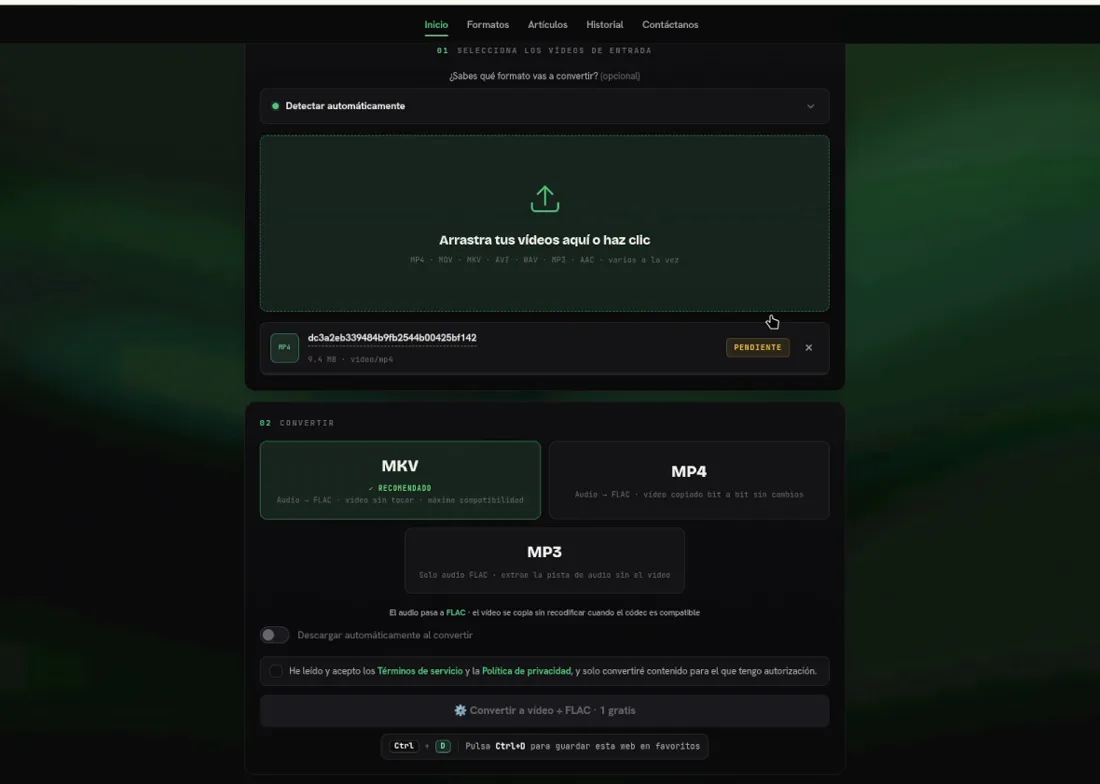
VidToFLAC is built on FFmpeg.wasm and performs the operation video editors most often need: converting a video's audio to FLAC — the format DaVinci Resolve, Premiere and Avid handle most reliably — while copying the video losslessly wherever possible. If your file is a video, convert it to FLAC in your browser.
Convert your video now
Drop in the file, press Convert and download the result. MP4, MKV, MOV, AVI, WMV, WebM — every common format. The video is copied or converted locally with the full power of FFmpeg.
Use VidToFLAC free- 1 Open VidToFLAC in your browser. On first use, FFmpeg.wasm downloads in the background — a few seconds on a decent connection. After that it stays cached.
- 2 Drop your file on the upload area. You can add several at once. No server imposes a size limit: the ceiling is the WebAssembly engine's memory, about 2 GB for input and output combined.
- 3 Press Convert. VidToFLAC inspects the file's codecs and picks the best FFmpeg command automatically: a remux if the video is already H.264/H.265, a re-encode to H.264 if the codec is not compatible.
- 4 Download the result. The processed file downloads straight from your browser — it has never been on any server.
Advertisement
What you can actually do with it
These are the cases where VidToFLAC (FFmpeg.wasm) is the quickest and most private option:
The commands in this guide are not taken on trust: they are run against test files before being published. The results, across seventeen container and codec combinations, are in the test bench.
Fixing audio in DaVinci Resolve
If DaVinci Resolve will not play the audio from your MP4, MOV or OBS capture, convert the audio to FLAC with VidToFLAC. The video is copied losslessly; only the audio codec changes. More detail in the guide to DaVinci Resolve not importing MP4 or OBS audio.
Converting between formats
MKV to MP4, AVI to MP4, WMV to MP4, MOV to MP4 — any of the usual combinations. If the codecs are compatible, VidToFLAC remuxes: lossless, in seconds. If not, it re-encodes the video with H.264.
Solving H.265 incompatibilities
If DaVinci Resolve Free cannot open your H.265 footage from an iPhone or a drone, VidToFLAC converts it to H.264, which it can open. See the guide to DaVinci Resolve not importing H.265 / HEVC.
Converting Windows (WMV) video to MP4
WMV will not open on Mac or Linux without extra codecs. VidToFLAC converts WMV to MP4 with H.264 directly in the browser. See the guide to converting WMV to MP4.
When installing FFmpeg is worth it
FFmpeg.wasm is ideal for one-off conversions, but there are cases where installing native FFmpeg makes sense:
- Processing hundreds of files: native FFmpeg with GPU acceleration is far faster for large batches. A bash loop converting 200 videos can take hours in FFmpeg.wasm and minutes with NVENC or VAAPI.
- Very high-resolution video: at 4K or 8K, re-encoding in FFmpeg.wasm is slow because it cannot use the GPU. For 4K H.265 from a mirrorless camera, native FFmpeg with
-hwaccel cudaor-hwaccel vaapiis 5 to 20 times faster. - Automated workflows: if you need conversion inside a script, a cron job or a CI/CD pipeline, FFmpeg in the terminal is the right tool.
- Advanced FFmpeg options: complex video filters, dynamic bitrate control, multiple audio tracks, subtitles — FFmpeg.wasm supports a good deal, but not everything.
What we measured: copying the video does not change the frame rate
If the clip has a variable frame rate, copying the video does not fix it: VidToFLAC copies the video track as it is, so the source's variable frame rate is kept. Converting to a constant frame rate needs a re-encode, for example with -vf fps=N. We checked this with ffprobe on test files.
Advertisement
Convert your video now
The power of FFmpeg directly in your browser. No installation, no uploads and no server-imposed limit (the practical ceiling is the memory available to your browser). Works with MP4, MKV, MOV, AVI, WMV, WebM and more.
Use VidToFLAC freeFrequently asked questions
Is it possible to use FFmpeg without installing it?
Yes. FFmpeg compiled to WebAssembly (FFmpeg.wasm) runs directly in the browser with no installation at all. VidToFLAC uses FFmpeg.wasm to process video entirely locally — the file never leaves your device, and no server is involved.
Do "online FFmpeg" converters upload my files to a server?
Most do. Services advertising themselves as an "online FFmpeg converter" generally run FFmpeg on their own servers: you upload the file, they process it and return the result. VidToFLAC is different: it uses FFmpeg.wasm, which runs in your browser. The file never leaves your device.
Is FFmpeg.wasm as capable as regular FFmpeg?
For most everyday uses — converting formats, changing the audio codec, remuxing containers — yes. The difference is speed: FFmpeg.wasm uses the CPU only, whereas native FFmpeg can use the GPU to accelerate H.264/H.265 encoding. For simple operations like a remux or an audio swap the speed difference is small; for re-encoding 4K video, native FFmpeg with a GPU can be 10 to 20 times faster.
Can I convert video offline with VidToFLAC?
Yes, once the page has loaded. On first use the browser downloads FFmpeg.wasm from the CDN and caches it. After that you can disconnect from the internet and conversions keep working. The browser cache can be cleared, in which case you will need a connection for that first load again.
Which video formats does VidToFLAC support?
VidToFLAC accepts the common formats: MP4, MKV, MOV, AVI, WMV, WebM, FLV, M4V and more. The video can be H.264, H.265, VP9, AV1, MPEG-4, WMV, ProRes, DNxHD, MJPEG and others. If the format is exotic or very old, FFmpeg.wasm may not support it — in which case a native FFmpeg install is the alternative.
Got a specific audio problem in DaVinci Resolve? See the guide to every audio error in DaVinci Resolve or the guide to which video format to use in DaVinci Resolve.